
Learn Basic Docker Containers Manipulation by Examples – Part 1

- Reconnecting to Containers and Executing Commands in Containers
To reconnect/attach to the running container run ” docker attach “command by specifying container ID or name, as following:
# docker attach centos_with_name[root@8a1b73684a02 /]# lsanaconda-post.log dev home lib64 media opt root sbin sys tmp varbin etc lib lost+found mnt proc run srv testttttt usr
As you see, we now inside the container, and ran ls command. Now, we’ll run the top command to see what processes are running inside this container
[root@8a1b73684a02 /]# topHere’s the top command output, only two processes are running. The main process is bash “the one with PID 1″ which ” docker attach " is connected to.
top - 21:27:34 up 1 day, 8:53, 0 users, load average: 5.87, 5.75, 5.73Tasks: 2 total, 1 running, 1 sleeping, 0 stopped, 0 zombie%Cpu(s): 71.7 us, 9.1 sy, 0.1 ni, 18.8 id, 0.2 wa, 0.0 hi, 0.2 si, 0.0 stKiB Mem : 7895808 total, 1717136 free, 4072384 used, 2106288 buff/cacheKiB Swap: 6279156 total, 6256820 free, 22336 used. 2629224 avail MemPID USER PR NI VIRT RES SHR S %CPU %MEM TIME+ COMMAND1 root 20 0 11776 1900 1516 S 0.0 0.0 0:00.07 bash19 root 20 0 51892 1880 1384 R 0.0 0.0 0:00.00 top
To quit and return to host from the running container session you must type exit command. The exit command terminates all the container processes and stops it WHY?.
# exit
As "docker attach" command is connecting to the main process “bash in our example” when we issued exit command it killed the main process which caused the container to stop.
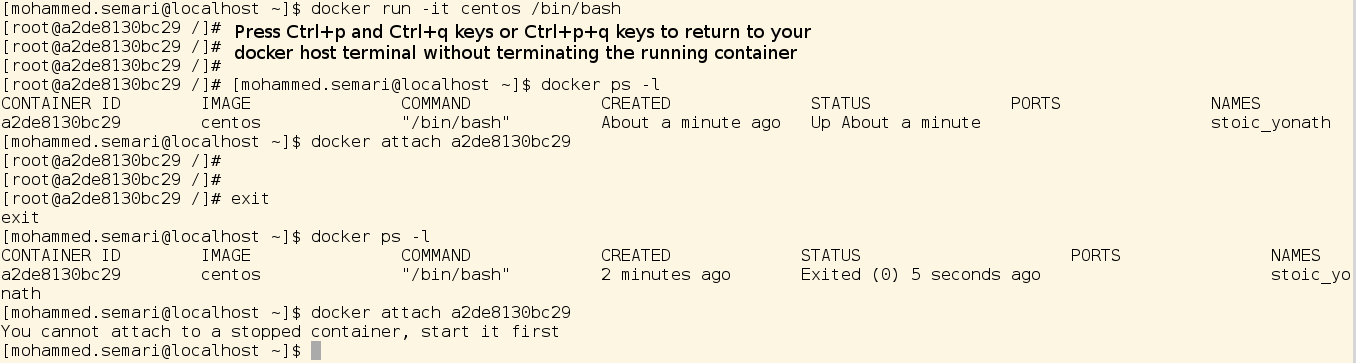
Because we used options -it when created our container, we can keep the container in running state but exit from the interactive session by pressing Ctrl+p and Ctrl+q keys or simply Ctrl+p+q keys. By using these keys, we can quit the console and return to host terminal WITHOUT TERMINATING THE RUNNING CONTAINER.
The following image shows that we created a container from centos image with -it option to run /bin/bash , we exited from the container and keep it running by pressing Ctrl+p+q keys, then we attached to it again and ran exit command which terminated it, the steps and check found in the below images:
You can execute command in a container without connected to it by complete reading the next point:
- Executing Commands in Containers Without Connecting to it
Do we really need to connect to a running containers to run any command inside it? ABSOLUTELY NO.
We can run any command in a running container without connecting/attaching to it using “docker exec" command.
Here’s the syntax of “docker exec" command:
# docker exec [OPTIONS] CONTAINER COMMAND [ARG...]"docker exec" command comes with some options, the most important options are -it “we previously explained them", so, let’s give some examples.
Example 1: We’ll run ls command in a container:
[mohammed.semari@localhost ~]$ docker exec -it bb104b26437d ls -ltotal 28-rw-r--r-- 1 root root 18307 Nov 2 12:47 anaconda-post.loglrwxrwxrwx 1 root root 7 Nov 2 12:45 bin -> usr/bindrwxr-xr-x 5 root root 380 Jan 31 22:04 devdrwxr-xr-x 48 root root 4096 Jan 31 22:04 etcdrwxr-xr-x 2 root root 6 Aug 12 2015 homelrwxrwxrwx 1 root root 7 Nov 2 12:45 lib -> usr/liblrwxrwxrwx 1 root root 9 Nov 2 12:45 lib64 -> usr/lib64drwx------ 2 root root 6 Nov 2 12:44 lost+founddrwxr-xr-x 2 root root 6 Aug 12 2015 mediadrwxr-xr-x 2 root root 6 Aug 12 2015 mntdrwxr-xr-x 2 root root 6 Aug 12 2015 optdr-xr-xr-x 448 root root 0 Jan 31 22:04 procdr-xr-x--- 2 root root 108 Nov 2 12:47 rootdrwxr-xr-x 10 root root 121 Nov 2 12:47 runlrwxrwxrwx 1 root root 8 Nov 2 12:45 sbin -> usr/sbindrwxr-xr-x 2 root root 6 Aug 12 2015 srvdr-xr-xr-x 13 root root 0 Jan 31 22:04 sysdrwxrwxrwt 7 root root 111 Nov 2 12:47 tmpdrwxr-xr-x 13 root root 143 Nov 2 12:45 usrdrwxr-xr-x 18 root root 4096 Nov 2 12:47 var
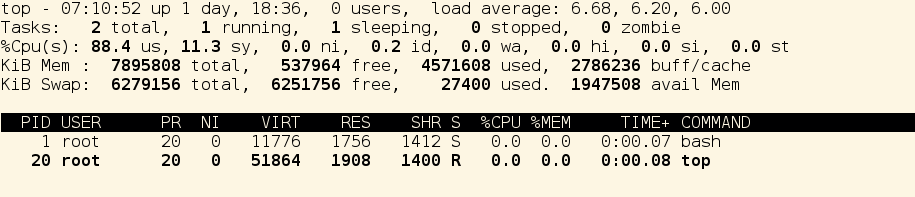
Example 2: We’ll run top command in a container:
# docker exec -it dreamy_agnesi topFrom the output below, you see that the main process is bash
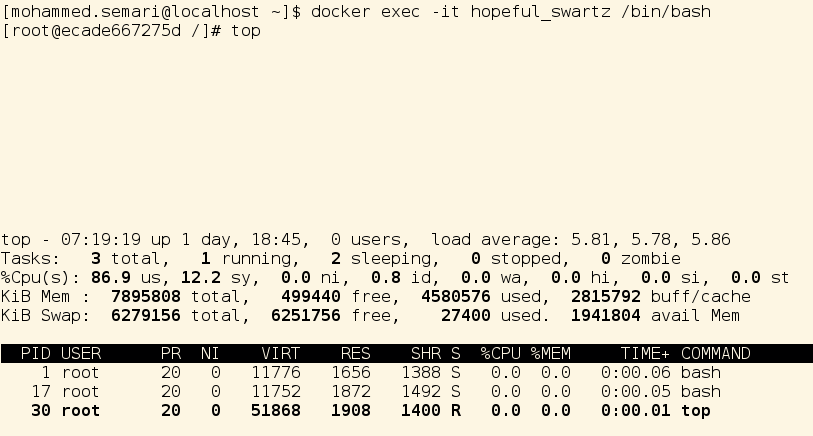
Example 3: We’ll use docker exec command to connect to a running container by creating a new bash process in the container, run the following command:
# docker exec -it hopeful_swartz /bin/bashOnce we run this command, we directly attached/connected to the container through a new bash process “we didn’t attach to the main container process“. Go and run top command and you’ll find that the container has two bash processes, and one top process “the one we just ran”, see the following image:
To exit this container just run exit command. The container in this case will still running as we only terminated the bash process we just created “not the main container process“.
as a prove, I’ll run another command in the container I just exited from, run the following ls command:
[mohammed.semari@localhost ~]$ docker exec -it hopeful_swartz lsanaconda-post.log dev home lib64 media opt root sbin sys usrbin etc lib lost+found mnt proc run srv tmp var
The Final Example: To import a database inside a container, we use docker exec command to run a full mysql database restore command, as the following
# docker exec -i mimastech mysql -uroot -ppassword mimastech_development < mysql.sqlHere’s we imported a database mimastech_development inside our database container “mimastech”. YOU MUST USE -i OPTION WITH THE ABOVE COMMAND.
Go ahead and change mysql user, password and database name to use this command.
I hope this article is good enough for you.
See you in other articles.

If You Appreciate What We Do Here On Mimastech, You Should Consider:
- Stay Connected to: Facebook | Twitter | Google+
- Support us via PayPal Donation
- Subscribe to our email newsletters.
- Tell other sysadmins / friends about Us - Share and Like our posts and services
We are thankful for your never ending support.


Great Article, thank you!